Streamlining InDesign Workflows with printQ Templates

This deep dive shows how designers and printers use Adobe InDesign to craft multi‑layer templates and seamlessly import them into printQ’s web‑to‑print platform. You’ll learn about layer organization, packaging, automatic recognition of editable fields, workflow benefits, best practices and future trends.
The Evolution of Digital Printing Workflows
The print industry has undergone a profound transformation in the past decade. Where once designers, customers and printers relied on iterative proofs, phone calls and manual file transfers, web‑based tools now allow designs to be created, customised and sent to press entirely online. This shift is not just about convenience; it fundamentally changes how printers manage orders, how customers interact with brands and how designers think about layouts. At the centre of this evolution is the concept of templated design combined with robust automation.
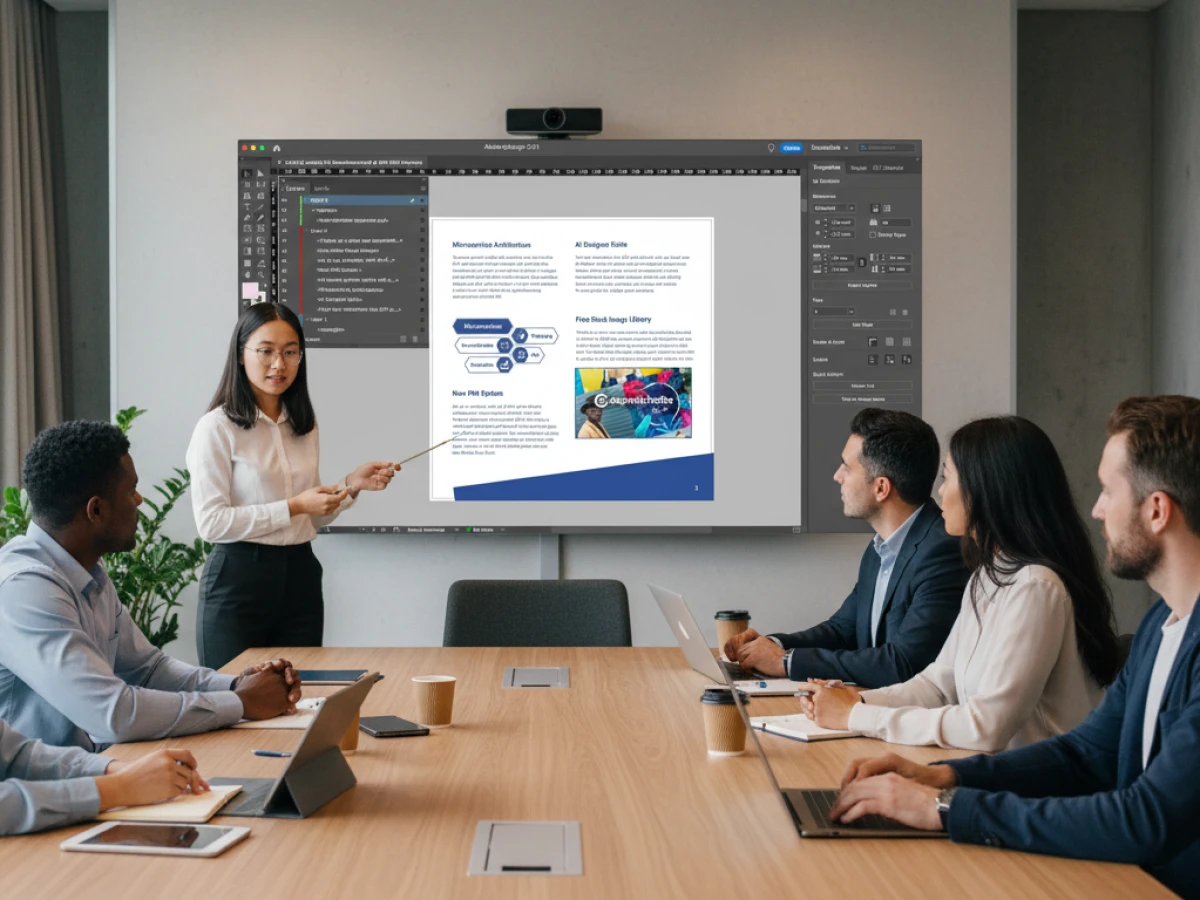
Adobe InDesign remains the gold standard for professional layout work. Its typographic tools, grid systems and precise measurement capabilities make it indispensable for creating high‑quality print products. Pairing InDesign with a web‑to‑print platform like printQ extends the reach of those designs by enabling non‑designers to personalise templates within defined boundaries. Through careful planning, designers can structure templates that allow clients to edit specific fields (like names, dates or images) without compromising brand integrity.
This article revisits the InDesign workflow within printQ from a fresh perspective, detailing how templates are constructed, imported and used in a modern printing environment. We will explore why templating is essential for today’s print market, walk through the technical requirements of a well‑built template, and offer best practices for creating reusable assets. Along the way, we will examine how these templates integrate with pricing engines, production workflows and APIs, ultimately demonstrating how printQ enables printers to scale operations, agencies to manage multiple brands and enterprises to maintain a cohesive identity across locations.
Why Templates Matter in Modern Printing
Consumers today expect rapid turnaround and customisation in nearly every purchase. They want personalised stationery, flyers or packaging with minimal effort. For brands, however, there is a tension between giving customers creative freedom and preserving visual identity. A templating system resolves this tension by defining the structure of a design — locking brand elements like logos and colour schemes — while exposing editable fields.
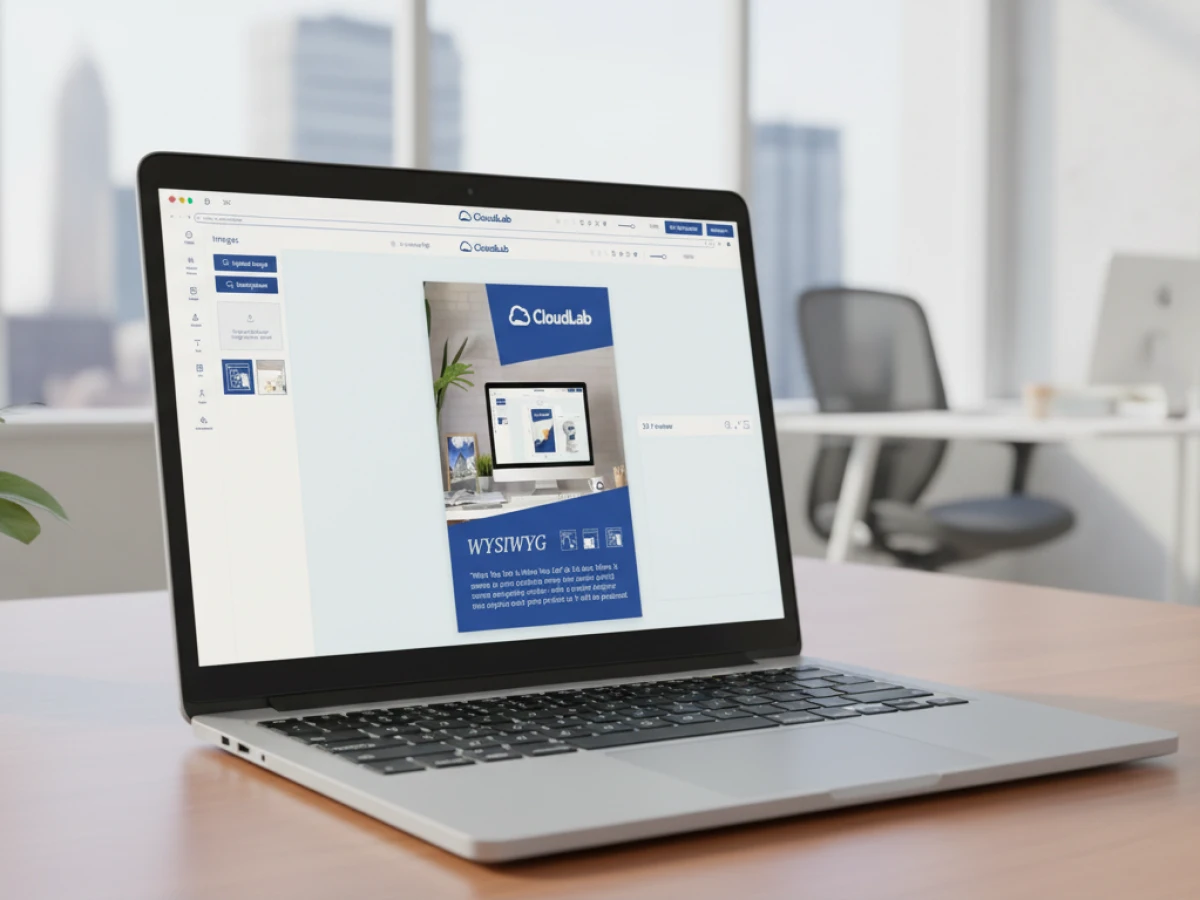
Adobe InDesign excels at creating such templates because it gives designers granular control over every element. They can set up grids, define spot colours, embed fonts and apply paragraph styles that enforce typographic consistency. When these templates are imported into a web‑to‑print environment, non‑designers interact with them through a simplified interface. PrintQ’s editor, for instance, provides a browser‑based WYSIWYG canvas where clients edit text and upload images while seeing real‑time previews.
The economic benefits are significant. A single professionally designed template can be reused thousands of times, spreading design costs over a large number of orders. Automated preflight and file generation reduce the time spent on manual checks, lowering labour expenses. In addition, standardised templates improve efficiency by providing consistent job definitions to production equipment, reducing misprints and rework. Combined with a robust e‑commerce engine, templates enable printers to offer fully self‑service shopping experiences, enhancing customer satisfaction and loyalty.
Building Templates: The Three‑Layer Approach
Creating templates that work in both InDesign and web‑to‑print environments requires a consistent layer structure. PrintQ recognises a three‑layer hierarchy:
Layer 1: The Permanent Background
The bottom layer holds the design’s visual foundation. This includes colour fields, gradients, images or textures that set the mood. Designers should lock this layer to prevent modifications. Locking ensures the brand’s visual identity remains intact across all derivatives. Keeping background elements separate also simplifies maintenance; if a client needs a seasonal colour change, designers can update this layer without affecting the editable areas.
Layer 2: Customer‑Editable Content
The middle layer contains all elements that end users will modify: text boxes for names, addresses and slogans; image placeholders for logos, headshots or product shots; and variable data fields. Best practices for this layer include:
- Using one font family and size per text frame to avoid unexpected format changes.
- Restricting each frame to a single colour; this assists the editor in mapping corporate palettes accurately.
- Ensuring image placeholders fit within the bleed zone and avoid clipping or masking, as printQ does not interpret masks.
- Avoiding descriptive layer names, as printQ identifies layers by position rather than name.
This layer should remain unlocked to enable user interaction. Designers must also test text frames with realistic content to prevent overflow issues.
Layer 3: Fixed Foreground Details
The top layer includes elements that must never be altered, such as logos, certifications, security marks or decorative ornaments tied to the brand. Designers lock these items to guarantee that the end user cannot move or delete them. Because the layer sits atop the others, these elements remain visible and anchored even if users reposition underlying content. Maintaining lock status in InDesign ensures the web editor respects these boundaries.
Preparing Templates: Technical Considerations
Before uploading a template to printQ, several technical details must be addressed. Proper preparation ensures the file imports correctly and functions as intended.
Document Setup
Choose document size and orientation early. Standardising dimensions — such as A4 for flyers or 85×55 mm for business cards — reduces confusion and ensures accurate previews. While printQ can handle multiple sizes within a single project, consistency across pages makes editing simpler. Bleeds should be set to at least 3 mm for small formats and up to 10 mm for large banners. Establish safety margins within page boundaries to prevent trimming of critical text or images.
Font Management
Embedded fonts guarantee consistent appearance across devices. Always embed fonts in the packaged file, and choose typefaces with licensing that permits embedding. If a client might lack access to proprietary fonts, provide web‑safe alternatives or system fonts that approximate the look. In the editor, substitution occurs only when fonts are unavailable; specifying one font and colour per frame avoids unpredictable changes when substitutions happen.
Image Handling
High‑resolution images are essential for print. Use images at 300 dpi or higher at final size; low‑res pictures will be flagged by printQ’s preflight. Embed images in the document rather than linking to external files to prevent missing graphics during packaging. If the design involves full‑bleed photos or complex art, test the template by exporting an IDML file and reopening it in InDesign to confirm all elements display as expected.
Effects and Compatibility
Some InDesign features do not translate to web‑based editors or PDFs. Complex transparency effects, nested clipping paths, blend modes or third‑party plug‑ins may produce unexpected results. Flatten transparencies, convert complex shapes to simpler forms and avoid unsupported plug‑ins. When in doubt, export the document as IDML and re‑import it to check for issues.
Simplifying Structure
Avoid deep nesting of groups or objects. PrintQ focuses on the three primary layers and may not recognise deeply nested elements as editable. Simplify groupings so that users can easily move or edit related elements together. Use simple naming conventions for clarity but rely on layer position for template logic.
Preflight Checks
InDesign’s preflight panel helps detect potential issues, such as missing fonts, overset text or colour profile mismatches. Address any errors before packaging to streamline the import process. While printQ includes its own preflight routine, catching errors early minimises delays once customers place orders.

Packaging and Uploading Templates
Once the document is ready, package it in InDesign. Packaging collects the INDD or IDML file and all linked assets (fonts, images) into a single folder. During packaging, InDesign generates a report summarising fonts used, links and colours. Review the report and fix unresolved issues. Packaging ensures that the web‑to‑print system has all necessary resources to display and edit the template.
After packaging:
- Compress the package into a ZIP if needed.
- Log into printQ’s back‑office.
- Navigate to the templates section and select “Upload new template.”
- Choose the packaged folder or ZIP file and initiate the upload.
PrintQ reads the file, identifies the three layers and registers editable fields. You can preview the template, adjust field properties (mandatory, character limits, allowed file types) and set pricing rules for specific options. Once published, the template becomes available in your storefront or B2B portal.
User Experience in the printQ Editor
The editing environment makes personalising templates accessible to non‑designers. Key features include:
- Drag‑and‑drop design: Users click into editable text fields and type content, or drop images into placeholders. The interface provides guidelines and snapping to align elements.
- Live preview: Changes appear instantly in a 2D or 3D preview. The 2D view shows bleed marks, fold lines and safe zones, while the 3D view (for packaging or folding products) allows rotation and zooming. This real‑time feedback reduces errors and increases confidence.
- Device responsiveness: The editor scales across desktop and mobile devices. Customers can personalise and order products from any location, which is particularly helpful for field staff, event planners or franchisees.
- Automated validation: At checkout, printQ runs a preflight check on the user’s design. It verifies resolution, colour spaces and fonts, correcting issues or prompting for fixes before the order proceeds. This reduces the risk of misprints.
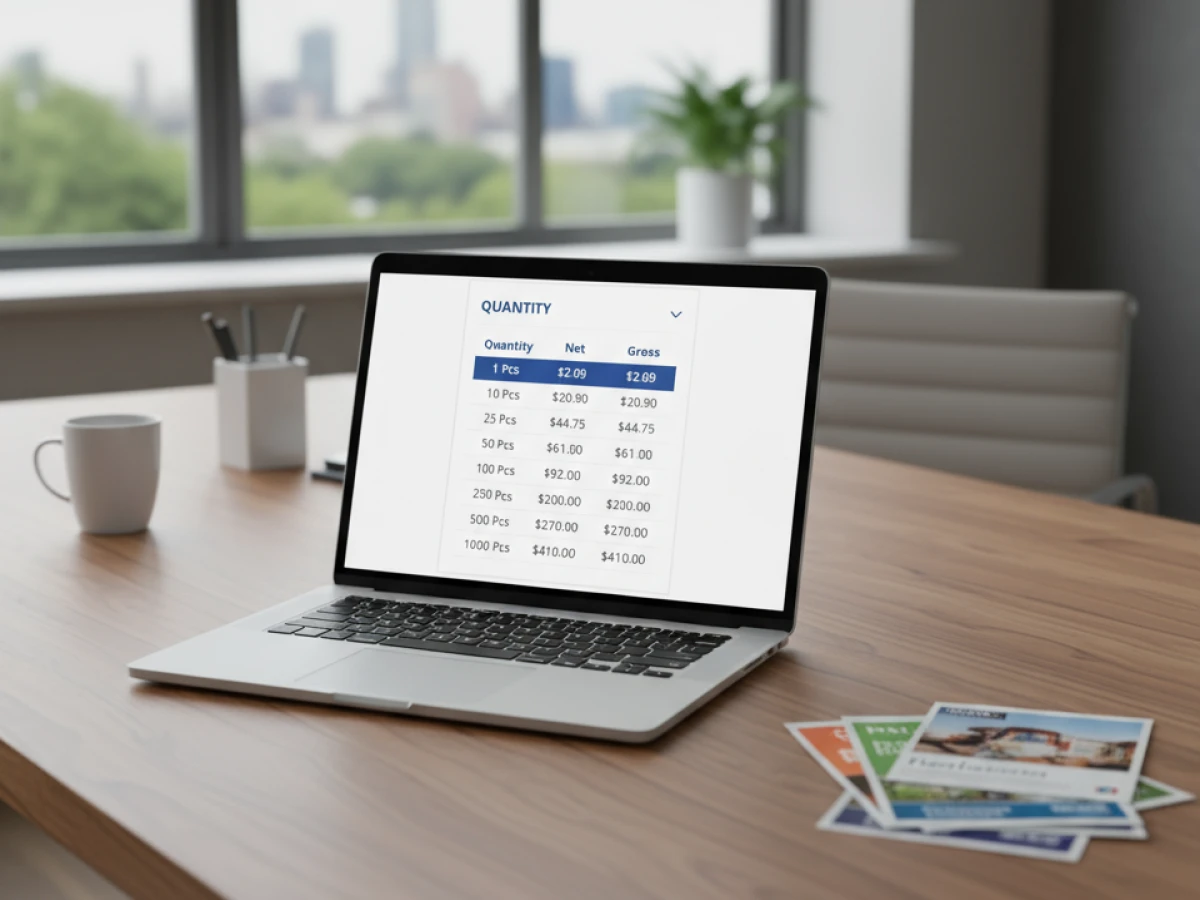
- Transparent pricing: For products with configurable options (paper stocks, finishes, bindings), the system calculates the cost in real time. Customers see price differences as they select options, encouraging informed choices.
Because printQ enforces the template’s structure, the finished product always stays on brand while offering customers the freedom to customise. The combination of a sophisticated design engine and intuitive interface bridges the gap between professional layout and consumer‑friendly editing.
Stakeholder Benefits Revisited
Templates deliver value across the print ecosystem:
For printers and service providers
Automation and pre‑defined templates mean printers can offer around‑the‑clock ordering without adding staff. Clients design and place orders online; printQ produces production‑ready files and job tickets with minimal intervention. The system integrates with existing e‑commerce features — customer accounts, loyalty programs, tax calculation, shipping options — allowing printers to run public shops and private portals on one platform.
Additionally, templates open the door to variable data printing. Personalising each piece — such as adding a recipient’s name or a unique QR code — adds value and justifies higher pricing. Because the layout is locked, the design stays consistent; only data fields change, improving throughput and profitability.
For agencies and designers
Agencies managing multiple brands benefit from templated workflows because they simplify the handover of brand assets. Creative teams build templates using all the features of InDesign — typographic control, precise grids and colour management — and then set which fields can be changed. Clients customise within these boundaries, ensuring brand consistency. PrintQ’s multi‑portal capability allows agencies to host several clients on one installation while keeping their assets separated. Designers continue to use InDesign rather than being constrained by a simplified web editor, protecting their creative freedom.
For enterprises and franchises
Large corporations with many branches face challenges coordinating marketing materials. Headquarters can create master templates for corporate collateral — business cards, posters, signage — and restrict editing to specific fields. Local offices customise only what they need, such as their address or event information. The central team maintains control over branding, while local teams respond quickly to changing promotions. Multi‑portal functionality enables tailored shops for each division, with distinct product catalogues and price lists.
For educational and non‑profit organisations
Universities and charities often have decentralised structures. Templates enable consistent branding across admissions letters, fundraising mailers, event posters and more. PrintQ’s permission controls ensure only authorised staff access sensitive templates. Budget managers assign cost centres, track usage and report on spend. The result is streamlined communication and stronger brand cohesion.
Integration with Other Modules
Templates are most powerful when integrated with other printQ modules:
Product configuration and pricing
Configurable attributes — such as size, paper type, finish, lamination or binding — affect both design and cost. PrintQ links these attributes to template logic: selecting premium paper might enlarge the bleed area or require different finishing marks; dynamic pricing calculates the cost based on material usage and production time. Templates thus adapt to physical requirements while providing accurate pricing information to customers.
Workflow automation
Once an order is submitted, printQ generates a print‑ready PDF and job tickets in formats like JDF or XML. These files include cut lines, fold marks, spot colour separations and finishing instructions. PrintQ’s hotfolder integration transfers files directly to devices; presses and cutters read the job tickets and adjust their operations automatically. With templates, every order follows the same structure, minimising manual interventions and errors.
API and integrations
PrintQ’s API facilitates advanced workflows. External applications — ERP, CRM, marketing automation or custom storefronts — can query available templates, fill them with data and submit orders automatically. For example, a subscription service might generate personalised welcome cards by calling the API with customer names and membership details; printQ populates the template and routes the order to the appropriate print facility. This integration supports high‑volume personalisation and real‑time fulfilment across diverse business systems.
Advanced Template Features
Beyond the basics, advanced features expand what templates can do:
Multi‑page documents
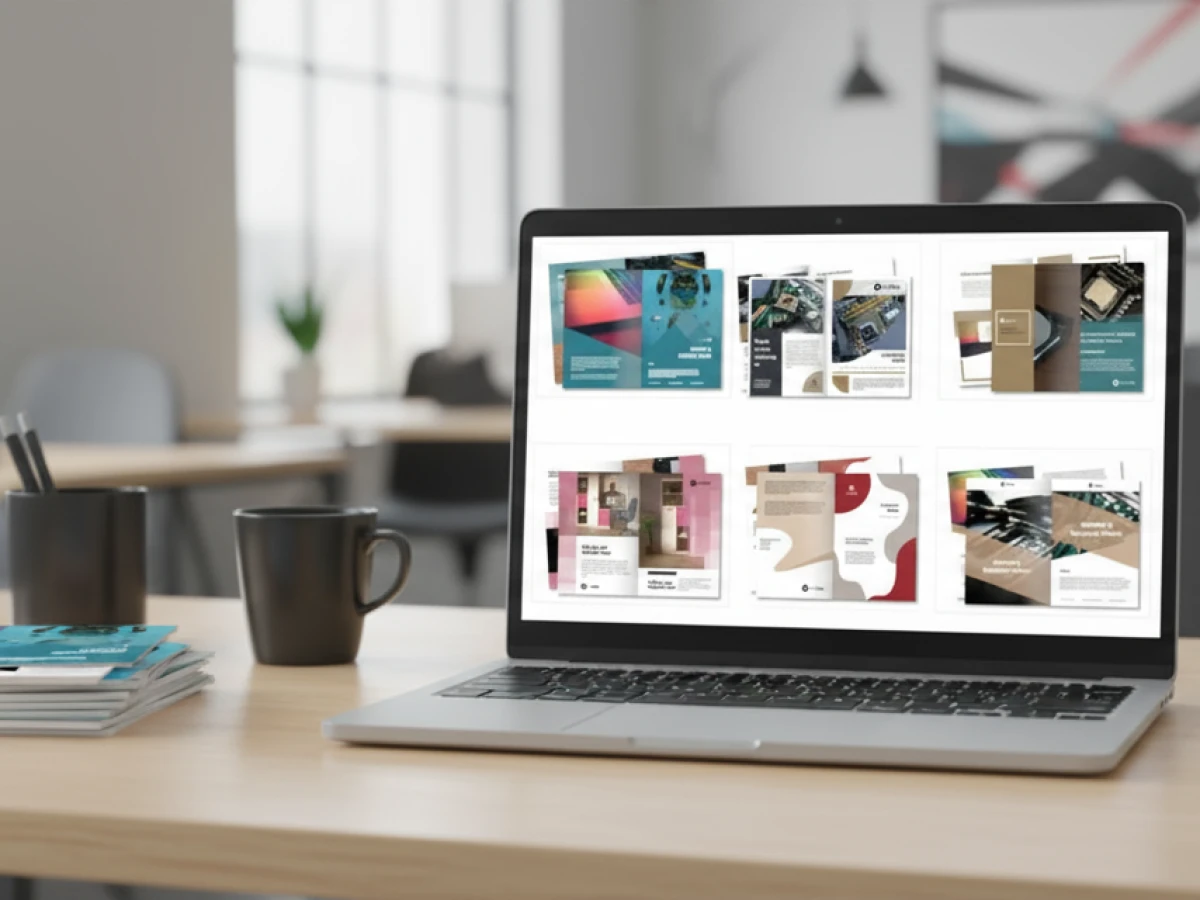
Products like brochures, catalogues or booklets require multiple pages. InDesign supports multi‑page layouts, and printQ preserves them on import. Designers can include different sizes or orientations within one template — say, an A5 folded programme alongside an A4 poster for the same event. The platform maintains consistent styling across pages and warns if resizing compromises readability. Multi‑page templates enable complex products while maintaining a single design environment.
Variable data printing
VDP adds personalisation at scale. Designers insert fields that connect to data sources, such as CSV or direct database queries. PrintQ maps each field to the corresponding column and populates the template automatically, generating a unique version for each record. Conditional logic allows dynamic content (e.g., placing a “VIP” badge if the customer has a premium status). VDP powers personalised mailings, membership cards, coupons and event tickets.
Embellishments and special finishes
Print buyers increasingly demand tactile enhancements like foil stamping, embossing, spot UV or laser‑cut patterns. Designers indicate these areas by defining spot colours or layers in InDesign. PrintQ recognises these elements and passes them to production equipment. Customers can toggle embellishments in the editor, and the platform updates pricing accordingly. This capability offers upsell opportunities and differentiates print products in crowded markets.
Integration with Creative Cloud libraries
Designers using Adobe Creative Cloud can store brand assets — logos, colours, icons and styles — in shared libraries. InDesign templates created with these assets embed them for use in printQ. This ensures consistent application of corporate identity across different templates and reduces the time spent searching for correct assets. Designers simply select from the library; no need to re‑create swatches or import logos repeatedly.

Best Practices for Template Designers
Experienced designers follow certain guidelines to create reliable templates:
- Plan the layout: Before working in InDesign, sketch the design to identify essential elements and where personalisation is allowed. Use hierarchical typographic contrast to lead the eye from headlines to details.
- Leverage master pages and styles: Master pages standardise repeated elements like page numbers or headers. Paragraph and character styles ensure consistent typography and allow global updates.
- Balance control and flexibility: Restrict user access to elements that must remain brand‑standard (fonts, colours, logo positioning), while making fields that change often easy to edit.
- Use realistic data for testing: Insert long names, long addresses or large images to ensure the layout still works. Adjust field sizes or reduce font sizes where necessary.
- Manage colour properly: Define colours using CMYK or spot colours suitable for print. Avoid RGB images, or convert them prior to packaging. Use global swatches for corporate colours.
- Document the template: Include a separate note or document explaining each field, character limits and recommended image dimensions. Clarify which layers are locked and why.
- Stay current: New versions of InDesign often include bug fixes and features; ensure compatibility by saving as IDML when sharing with others.
- Collaborate early: Involve print operators to discuss naming conventions, crop marks, colour bars or other production requirements. Early collaboration prevents last‑minute issues.
Future Developments in Web‑to‑Print
As technology progresses, we can expect further changes in how templates are created and used:
- AI in design: Machine learning could analyse brand assets and generate template suggestions automatically. AI might adjust layouts for readability, propose alternative colour palettes or predict which design elements will perform better with target audiences.
- Cross‑media workflows: Templates will increasingly need to output to multiple channels — print, email, social media, digital signage. A single InDesign file might drive printed postcards and animated web banners, requiring responsive design principles.
- Sustainable printing options: Customers seek eco‑friendly materials and processes. Templates may include dynamic badges or icons indicating recycled stock or carbon‑neutral production. PrintQ’s configuration engine could offer green options with automatic price adjustments and environmental metrics.
- Subscription‑based printing services: Instead of paying per order, customers might subscribe to a template library with design support and printing services. Scaling such services requires efficient template creation and distribution via APIs.
- Enhanced collaboration: As remote working persists, cloud‑based tools will enable multiple designers to work on the same template, track changes and comment in real time. Integrating these capabilities with web‑to‑print platforms ensures that the latest version is always available for ordering.
Templates represent a bridge between professional design and consumer-friendly customisation. By structuring InDesign documents with locked backgrounds and foregrounds and clearly defined editable fields, designers empower customers to personalise without compromising brand standards. Preparation — including setting proper bleed, embedding fonts, simplifying structure and running preflight checks — ensures the template imports seamlessly into printQ. There, an intuitive editor provides live previews, responsive design and automatic validation, simplifying the ordering process.
For printers, templates reduce labour, increase throughput and enable sophisticated services like variable data printing. Agencies and designers gain a scalable way to manage multiple brands while maintaining creative control. Enterprises and franchises enforce brand consistency while offering local customisation, and non‑profits and institutions benefit from streamlined communication. Integrating templates with product configuration, workflow automation and API connections turns them into a comprehensive solution that spans design, ordering and production.
As the web‑to‑print landscape evolves, new technologies like AI, cross‑media templates and sustainability initiatives will further enhance the template workflow. Adopting best practices today not only ensures reliable, brand‑aligned printing but also positions businesses to seize emerging opportunities. By combining the precision of Adobe InDesign with the flexibility of printQ, printers and designers can offer high‑quality, personalised products that meet the expectations of modern consumers and enterprises alike.
Introducing our product features:
https://www.web-to-printq.com/feature/web-to-print-indesign-workflow
https://www.web-to-printq.com/feature/dynamic-preflight-check
https://www.web-to-printq.com/feature/w2p-editorial-designer
https://www.web-to-printq.com/feature/variable-data-printing